3 Layouts for Creating Dynamic Avery Shipping Labels
By DocuGenerate
October 31, 2026
Introduction
Address labels, shipping labels, and name badges are some of the most common documents printed in an office. The Avery label sheets are a popular choice, and for a long time Microsoft Word offered a step-by-step wizard to fill them. That wizard has been retired, and the remaining options in Word still mean typing the addresses into the document or linking a data source every time you print a new batch.
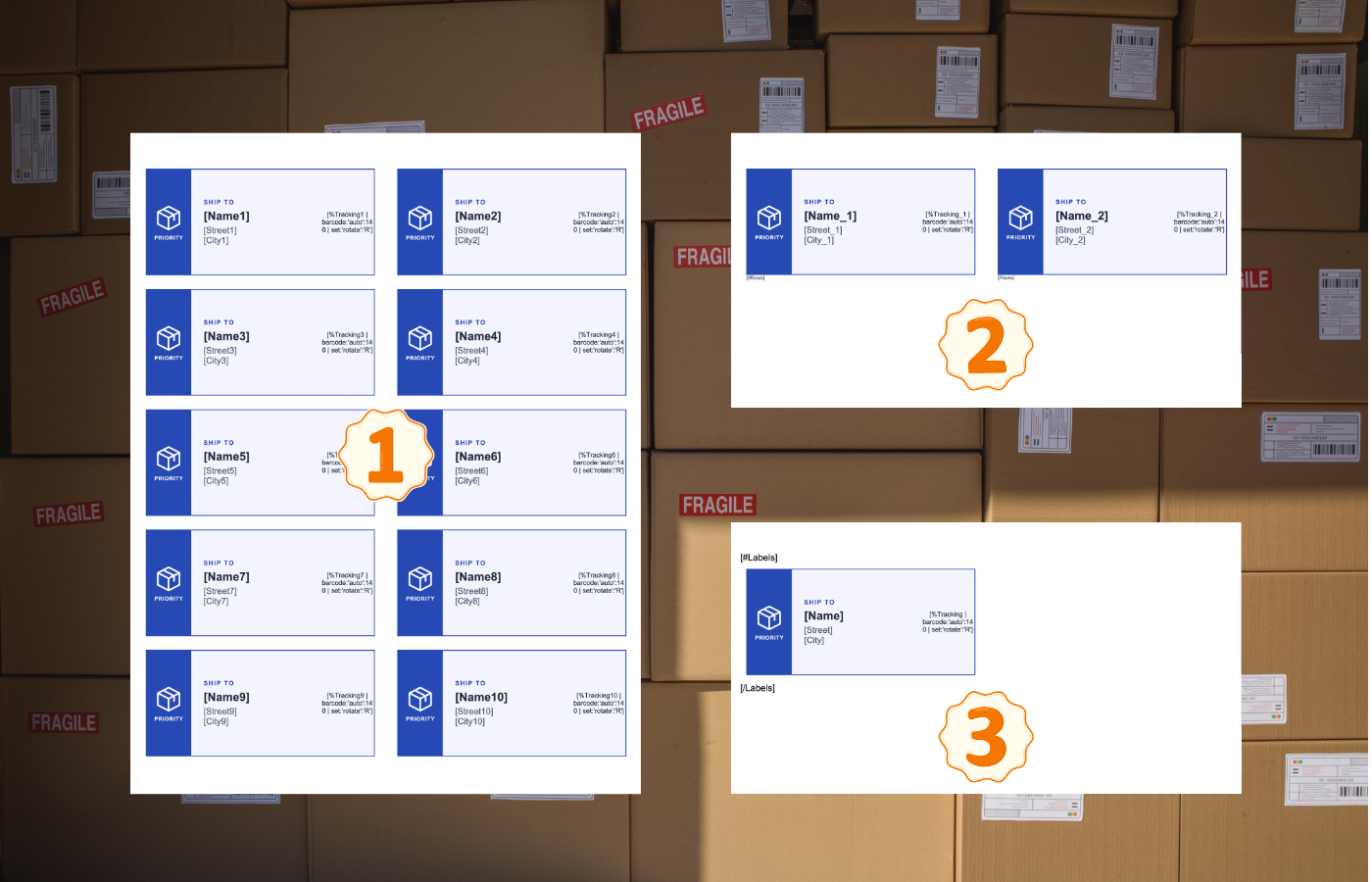
With DocuGenerate, the label sheet becomes a reusable Word template, and the addresses become data. You design the sheet once, upload it, and generate a print-ready PDF whenever you need a new batch of labels. In this article, we’ll compare three layouts for such a template:
A fixed grid where every label on the sheet has its own numbered merge tags.
For all three layouts, we’ll generate the labels from the web app by filling out a form, so you won’t need a spreadsheet or any code. Each template also comes with a JSON dataset that you can use instead of the form.
The Avery 5163 Label Sheet
All three templates target the Avery 5163 shipping labels, a US Letter sheet with 10 labels of 4” × 2” arranged in 2 columns and 5 rows. The printed content has to land inside the label boundaries, so the page margins and the gap between the two columns follow the measurements from the sheet’s template.
Each label is designed as a shipping label. A blue band on the left holds a parcel icon and a “Priority” caption, and a light blue panel shows the address under a “Ship to” heading, next to a vertical barcode with the package’s tracking number. Each label uses four merge tags: the recipient’s Name in bold, the Street address, a City line that holds the city, state, and ZIP code, and the Tracking number.
The design is drawn slightly inside the edges of each label, with a thin blue border around it. Printers rarely feed a sheet with perfect accuracy, and this small inset keeps the colored areas on the label even if the print shifts slightly. If you use a different Avery product, the same techniques apply with the measurements of your sheet.
Adding a Barcode
Most shipping labels carry a scannable code, so each label shows the tracking number as a barcode, generated with the barcode filter:
The barcode is fixed at 140 pixels in height, with the width adjusted automatically, and the rotate option turns it 90 degrees clockwise so it runs along the right edge of the label. A barcode also prints its value in human-readable text by default.
The barcode filter is part of the enhanced syntax, so you need to enable it for the template. Open the template, go to Settings, check the Enable enhanced syntax checkbox, and click Save. The enhanced syntax doesn’t allow spaces in merge tags, which is why all the tag names in these templates are single words.
Layout 1: A Grid with Numbered Merge Tags
The first layout is the most direct translation of a label sheet into a template. The page contains a single table with 5 rows and 3 columns: two columns for the labels and a narrow column in the middle that acts as the gap. Every row has an exact height of 2”, so each cell sits on top of one physical label. The outer table has no borders, and each label cell contains a smaller three-column table for the band, the address panel, and the barcode.
Since every label is its own cell, each one needs its own set of merge tags. The tags are numbered from 1 to 10, from left to right and from top to bottom: [Name1], [Street1], [City1], and the Tracking1 barcode for the first label, [Name2], [Street2], [City2], and the Tracking2 barcode for the second label in the right column, and so on until the Tracking10 barcode in the bottom right corner. You can download the Shipping Labels Grid.docx file and upload it to your account.
Filling Out the Form
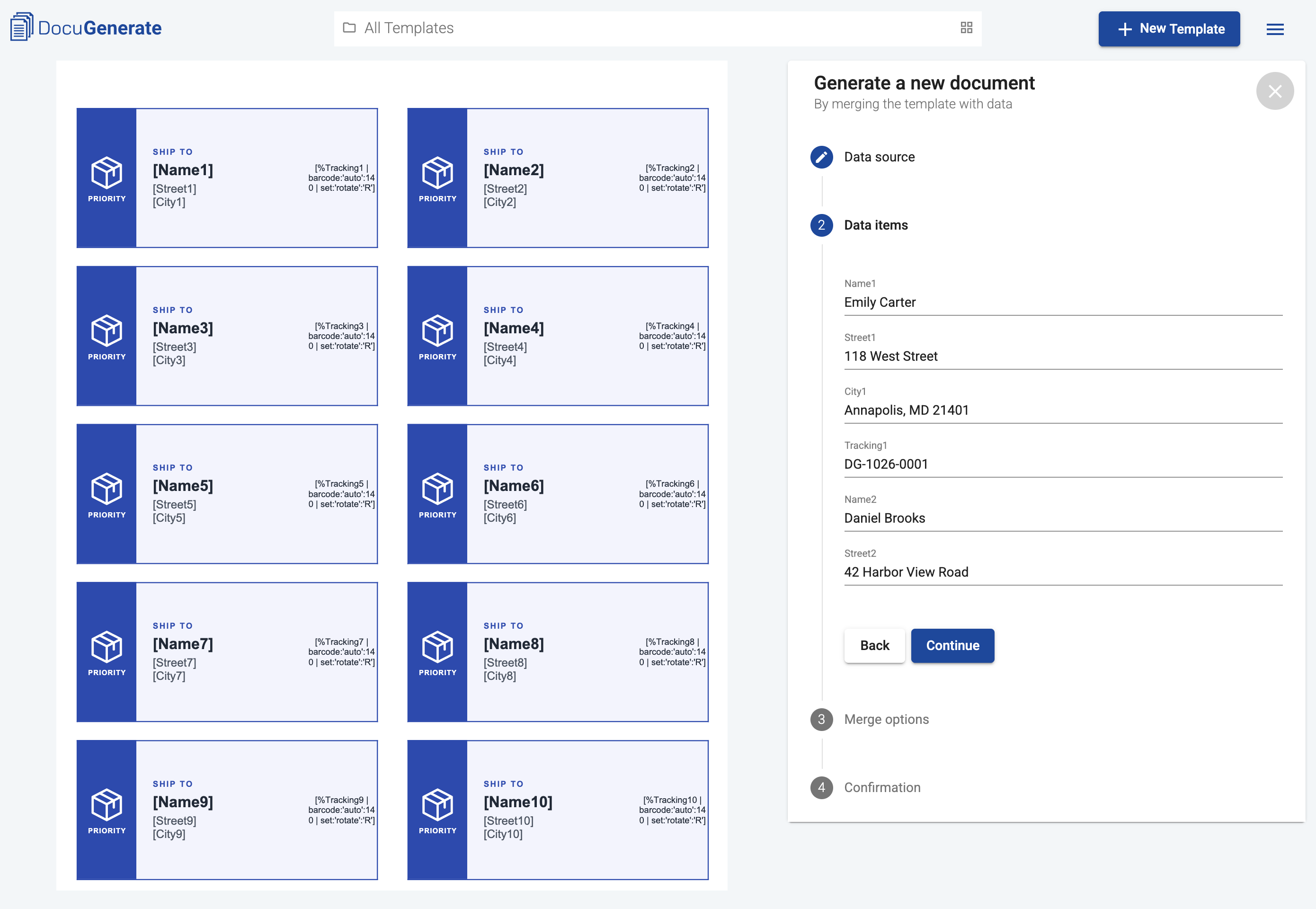
To generate the labels, open the template and click the New Document button. For the Data source, select Fill out a form and click Continue. The form displays an input field for each merge tag in the template. With the grid template, this means 40 input fields, grouped label by label in the same order as in the document.
None of the fields are required, but keep in mind that a label without an address still prints its blue band and headings, so it’s best to fill out all 10 labels. Once you’re done, click Continue, select PDF as the export format in the merge options, and generate the document.
Using JSON Data
If you’d rather not type all the values, you can use the Shipping Labels Grid.json dataset instead. Click New Document, select JSON data as the Data source, and paste the content of the file. The dataset is an array with a single item, because all the labels of the sheet belong to the same document.
[{"Name1":"Emily Carter","Street1":"118 West Street","City1":"Annapolis, MD 21401","Tracking1":"DG-1026-0001","Name2":"Daniel Brooks","Street2":"42 Harbor View Road","City2":"Portland, ME 04101","Tracking2":"DG-1026-0002","Name3":"Sofia Martinez","Street3":"905 Sunset Boulevard","City3":"Austin, TX 78704","Tracking3":"DG-1026-0003","Name4":"James Whitfield","Street4":"2210 Maple Avenue","City4":"Evanston, IL 60201","Tracking4":"DG-1026-0004","Name5":"Priya Nair","Street5":"77 Cedar Lane","City5":"Raleigh, NC 27601","Tracking5":"DG-1026-0005","Name6":"Michael O'Connor","Street6":"1450 Pine Street","City6":"Seattle, WA 98101","Tracking6":"DG-1026-0006","Name7":"Hannah Lee","Street7":"36 Orchard Drive","City7":"Boulder, CO 80302","Tracking7":"DG-1026-0007","Name8":"Robert Nguyen","Street8":"580 Lakeshore Drive","City8":"Madison, WI 53703","Tracking8":"DG-1026-0008","Name9":"Grace Thompson","Street9":"19 Willow Court","City9":"Savannah, GA 31401","Tracking9":"DG-1026-0009","Name10":"Lucas Bennett","Street10":"301 Market Street","City10":"San Francisco, CA 94105","Tracking10":"DG-1026-0010"}]
After clicking Continue with one item, the rest of the process is the same as with the form. Every item you add to the array produces one more document, so with the grid template, two items give you two sheets of labels, which you can combine into a single file for printing.
The Generated Labels
The generated Shipping Labels Grid.pdf contains the 10 addresses, each one positioned inside its label:
The grid is simple to build, since what you see in Word is exactly what gets printed. Its main limitation is that one document always produces a single sheet of 10 labels, and every additional sheet needs another set of 40 values.
Layout 2: Two Labels per Table Row
The second layout keeps the table from the grid, but only its first row. The row still has two label cells separated by the gap column, and the merge tags use a _1 suffix for the left label and a _2 suffix for the right one: [Name_1], [Street_1], [City_1], and the Tracking_1 barcode, then [Name_2], [Street_2], [City_2], and the Tracking_2 barcode. Instead of numbering every label on the sheet, the template repeats this row for each item of a list named Rows, and each item holds the addresses for one pair of labels.
The loop uses DocuGenerate’s syntax for repeating table rows, which requires the opening tag and the closing tag to be in different cells of the same row. The position of the tags inside the cells doesn’t matter for a row loop, so placing them under the labels, instead of before the left one, keeps both labels at the same height in their cells. You can download the Shipping Labels Rows.docx file and upload it to your account.
Adding Rows to the Form
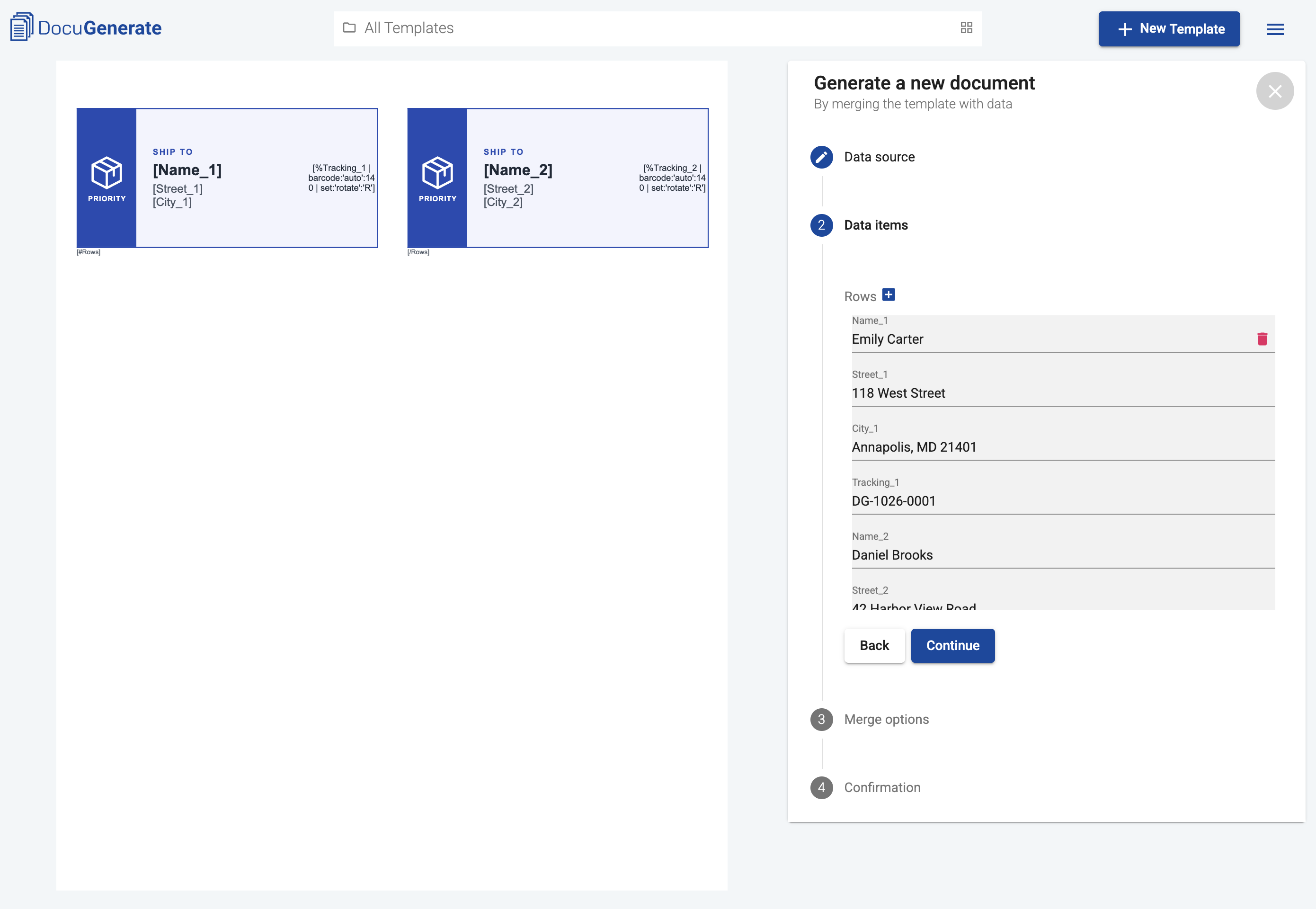
Generating the labels starts the same way as for the grid template: click New Document, choose Fill out a form, and click Continue. This time, the form shows the Rows property with a + button next to it. Each click on + adds a new item with 8 input fields, 4 for the left label and 4 for the right label. To remove an item, click the Delete icon next to it.
For this example, we’ve added 6 rows with 12 addresses. Click Continue, select PDF as the export format, and generate the document.
Using JSON Data
You can also paste the Shipping Labels Rows.json dataset as JSON data. Its single item contains a Rows array with one object for the two labels of each row:
[{"Rows":[{"Name_1":"Emily Carter","Street_1":"118 West Street","City_1":"Annapolis, MD 21401","Tracking_1":"DG-1026-0001","Name_2":"Daniel Brooks","Street_2":"42 Harbor View Road","City_2":"Portland, ME 04101","Tracking_2":"DG-1026-0002"},{"Name_1":"Sofia Martinez","Street_1":"905 Sunset Boulevard","City_1":"Austin, TX 78704","Tracking_1":"DG-1026-0003","Name_2":"James Whitfield","Street_2":"2210 Maple Avenue","City_2":"Evanston, IL 60201","Tracking_2":"DG-1026-0004"},{"Name_1":"Priya Nair","Street_1":"77 Cedar Lane","City_1":"Raleigh, NC 27601","Tracking_1":"DG-1026-0005","Name_2":"Michael O'Connor","Street_2":"1450 Pine Street","City_2":"Seattle, WA 98101","Tracking_2":"DG-1026-0006"},{"Name_1":"Hannah Lee","Street_1":"36 Orchard Drive","City_1":"Boulder, CO 80302","Tracking_1":"DG-1026-0007","Name_2":"Robert Nguyen","Street_2":"580 Lakeshore Drive","City_2":"Madison, WI 53703","Tracking_2":"DG-1026-0008"},{"Name_1":"Grace Thompson","Street_1":"19 Willow Court","City_1":"Savannah, GA 31401","Tracking_1":"DG-1026-0009","Name_2":"Lucas Bennett","Street_2":"301 Market Street","City_2":"San Francisco, CA 94105","Tracking_2":"DG-1026-0010"},{"Name_1":"Olivia Park","Street_1":"64 Riverside Avenue","City_1":"Hartford, CT 06103","Tracking_1":"DG-1026-0011","Name_2":"Ethan Russo","Street_2":"812 Elm Street","City_2":"Columbus, OH 43215","Tracking_2":"DG-1026-0012"}]}]
After clicking Continue with one item, the rest of the process is the same as with the form.
The Generated Labels
The generated Shipping Labels Rows.pdf contains the first 5 rows on its first page, with the labels filled row by row, so it looks exactly like the grid result. The sixth row continues at the top of the second page.
Unlike the grid, the template only describes two labels, and the number of labels is decided by the data. The trade-off is in the data itself, which has to be grouped in pairs. If the number of addresses is odd, the last row has an empty right label that still prints its blue band and headings.
Layout 3: A Single Label in Two Columns
The third layout goes one step further. The template describes a single label, and DocuGenerate repeats it for each item in a list. The template only has four merge tags, Name, Street, City, and Tracking, inside a loop named Labels, using the list syntax with an opening [#Labels] tag and a closing [/Labels] tag.
To place the labels side by side, the page is split into two columns using Word’s Columns feature. Each column is as wide as a label, and the spacing between them matches the gap on the sheet. The labels fill the left column first, then continue at the top of the right column, and move on to a new page once both columns are full.
The template takes care of the layout details, so a label is never split between two columns and the right column starts at exactly the same height as the left one. The [#Labels] and [/Labels] tags sit in their own paragraphs before and after the table, so the whole label is repeated. You can download the Shipping Labels List.docx file and upload it to your account.
Adding Items to the Form
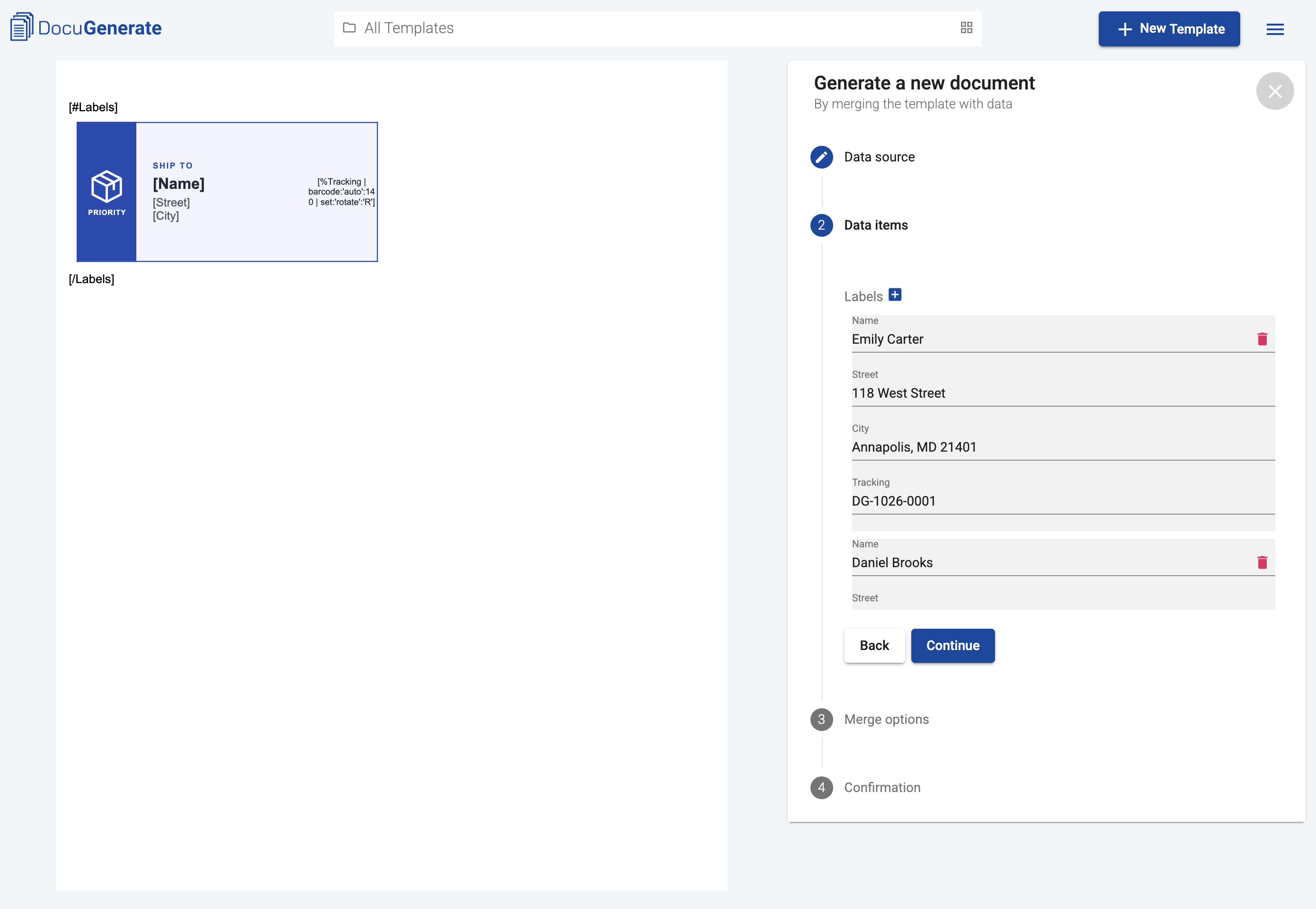
In the form, the Labels property has a + button next to it, like the Rows property in the previous layout. Each click on + adds a new item with its own Name, Street, City, and Tracking input fields.
For this example, we’ve added 13 addresses, which is more than a single sheet can hold. Once all the items are entered, click Continue, select PDF as the export format, and generate the document.
Using JSON Data
You can also paste the Shipping Labels List.json dataset as JSON data. Its single item contains a Labels array with one object per label:
[{"Labels":[{"Name":"Emily Carter","Street":"118 West Street","City":"Annapolis, MD 21401","Tracking":"DG-1026-0001"},{"Name":"Daniel Brooks","Street":"42 Harbor View Road","City":"Portland, ME 04101","Tracking":"DG-1026-0002"},{"Name":"Sofia Martinez","Street":"905 Sunset Boulevard","City":"Austin, TX 78704","Tracking":"DG-1026-0003"},{"Name":"James Whitfield","Street":"2210 Maple Avenue","City":"Evanston, IL 60201","Tracking":"DG-1026-0004"},{"Name":"Priya Nair","Street":"77 Cedar Lane","City":"Raleigh, NC 27601","Tracking":"DG-1026-0005"},{"Name":"Michael O'Connor","Street":"1450 Pine Street","City":"Seattle, WA 98101","Tracking":"DG-1026-0006"},{"Name":"Hannah Lee","Street":"36 Orchard Drive","City":"Boulder, CO 80302","Tracking":"DG-1026-0007"},{"Name":"Robert Nguyen","Street":"580 Lakeshore Drive","City":"Madison, WI 53703","Tracking":"DG-1026-0008"},{"Name":"Grace Thompson","Street":"19 Willow Court","City":"Savannah, GA 31401","Tracking":"DG-1026-0009"},{"Name":"Lucas Bennett","Street":"301 Market Street","City":"San Francisco, CA 94105","Tracking":"DG-1026-0010"},{"Name":"Olivia Park","Street":"64 Riverside Avenue","City":"Hartford, CT 06103","Tracking":"DG-1026-0011"},{"Name":"Ethan Russo","Street":"812 Elm Street","City":"Columbus, OH 43215","Tracking":"DG-1026-0012"},{"Name":"Ava Sullivan","Street":"27 Beacon Street","City":"Boston, MA 02108","Tracking":"DG-1026-0013"}]}]
After clicking Continue with one item, the rest of the process is the same as with the form.
The Generated Labels
The first page of the generated Shipping Labels List.pdf contains the first 10 labels, 5 in each column, with both columns aligned at the top of the sheet. The remaining 3 labels flow to the top of the left column on the second page. You can see both pages in the document below:
Notice that the labels are filled column by column, and not row by row as in the other two layouts, so Emily Carter and Daniel Brooks, the first two addresses, are both in the left column. For most mailing jobs the order doesn’t matter, but keep it in mind if your labels must follow a specific sequence.
Choosing a Layout
All three templates print the same labels, and the right choice depends on how many labels you print and how your data is organized:
Feature
Layout 1: Grid
Layout 2: Rows
Layout 3: List
Merge tags in the template
40 numbered tags
8 tags inside a Rows loop
4 tags inside a Labels loop
Labels per document
Fixed, exactly one sheet
Any number, in pairs
Any number
Data structure
One field per label
A list of address pairs
A list of addresses
Fill order
Row by row
Row by row
Column by column
Template complexity
Simple table
Table with a row loop
Columns and a list loop
The grid fits a single sheet of labels, with every position visible in the template. The rows layout handles any number of labels in reading order. The list layout is the most flexible when the addresses come from another system, because a list of addresses maps naturally to an array in the data.
Conclusion
In this article, we built three Word templates for the Avery 5163 label sheet and generated print-ready PDFs from the DocuGenerate web app. The grid layout maps every label to its own numbered merge tags, the rows layout repeats a table row with two labels for each pair of addresses, and the list layout repeats a single label that flows into two columns. Fixed row heights keep the labels aligned with the sheet in all three cases.
The same techniques work for any label product, from return address labels to name badges. Start from the measurements of your sheet, choose the layout that matches your data, and you’ll only have to design the labels once. The template stays in your account, so every new batch only takes a few minutes, whether you fill out the form or paste a JSON dataset. Before printing a full batch, print the first page on plain paper and hold it against a label sheet to check that everything lines up.
Resources
The Avery 5163 template page with the label sheet’s specifications.
Create a Pipedream workflow that receives participant data through a webhook, generates a personalized PDF certificate of participation with DocuGenerate, and emails it to the participant with Gmail, all within a few seconds of the request.
Build an n8n workflow that watches a Google Drive folder for a new salary review spreadsheet and automatically generates a personalized PDF salary increase letter for every employee listed in it. The finished letters are saved back to Google Drive.
Learn how to automatically generate Form W-9 documents whenever a new row is added in Smartsheet. This tutorial builds a Power Automate flow that merges vendor and contractor data with a DocuGenerate template to produce the form.